Search and sort filter values
Select a card's Details header to open its Filter Details dialog. Use it when a card has many values or truncated labels.
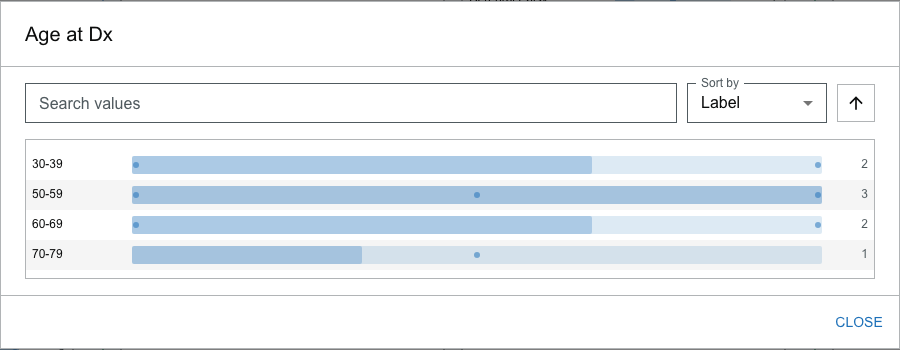
Search values
Type in Search values to limit the list to labels containing your text. If nothing matches, the dialog shows No matching values.
Searching only changes what is visible in the dialog. It does not change the cohort until you select a value.
Sort values
Choose:
- Count to order values by patient frequency, or
- Label to order values alphabetically.
Use the adjacent direction button to switch between ascending and descending order. Some cards use a clinical order by default — for example, stage values follow their natural stage sequence.
Make and remove selections
Selections in the dialog are the same selections shown on the compact card. Click a value to select it, click it again to remove it. Disabled values that cannot add a matching patient behave the same as on the card. You can expand hierarchy groups here to browse and select children.
Patient dots in the dialog
If a value represents a small number of patients, its patient dots appear here too. In the Filter Details dialog, clicking a dot pins that patient's summary in place so you can read it — it does not open a patient tab in the drawer. (On a main Cohort Explorer card, clicking a dot opens a patient tab instead.)
Close the dialog
Close the dialog when finished. Your selections remain active on the card and in the cohort.