The Selected Patients table
The cohort table in the Selected Patients drawer lists one patient per row. Most of its controls act on the currently loaded page, not on every page of the cohort.
Search the loaded page
Type in Search patient details... to filter the visible rows. The search matches patient ID, demographics, cancer type, stage and grade, diagnoses, biomarkers, treatments, procedures, and findings.
The search applies only to the rows currently loaded in the drawer. If a patient is on another page, move to that page before searching for them.

If nothing on the page matches, the table shows No patients match your search.
Sort and resize columns
- Click a sortable column header to cycle its sort state (ascending, descending, and off). Sorting applies to the loaded rows only.
- Drag the boundary on the right edge of a header to resize that column.
- Hover a truncated cell to see its full value in a tooltip.
Choose visible columns
Open the column chooser to show or hide fields. Use Toggle all columns to turn every column on or off at once.
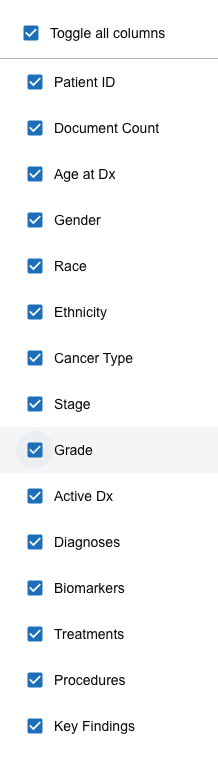
The CSV export includes only the columns that are currently visible — see Export results.
Loading, empty, and error states
- Loading — the table shows "Loading patient details..." while a page loads.
- No results — an empty search shows "No patients match your search."
- Error — if patient details fail to load, the table shows an error message and a Retry button. The cohort count can be ready before patient details finish loading, so a retry often succeeds on its own.
Expand a row for patient detail
Click a row (or its chevron) to expand it and reveal that patient's grouped clinical detail. Only one row stays expanded at a time — expanding another collapses the first.
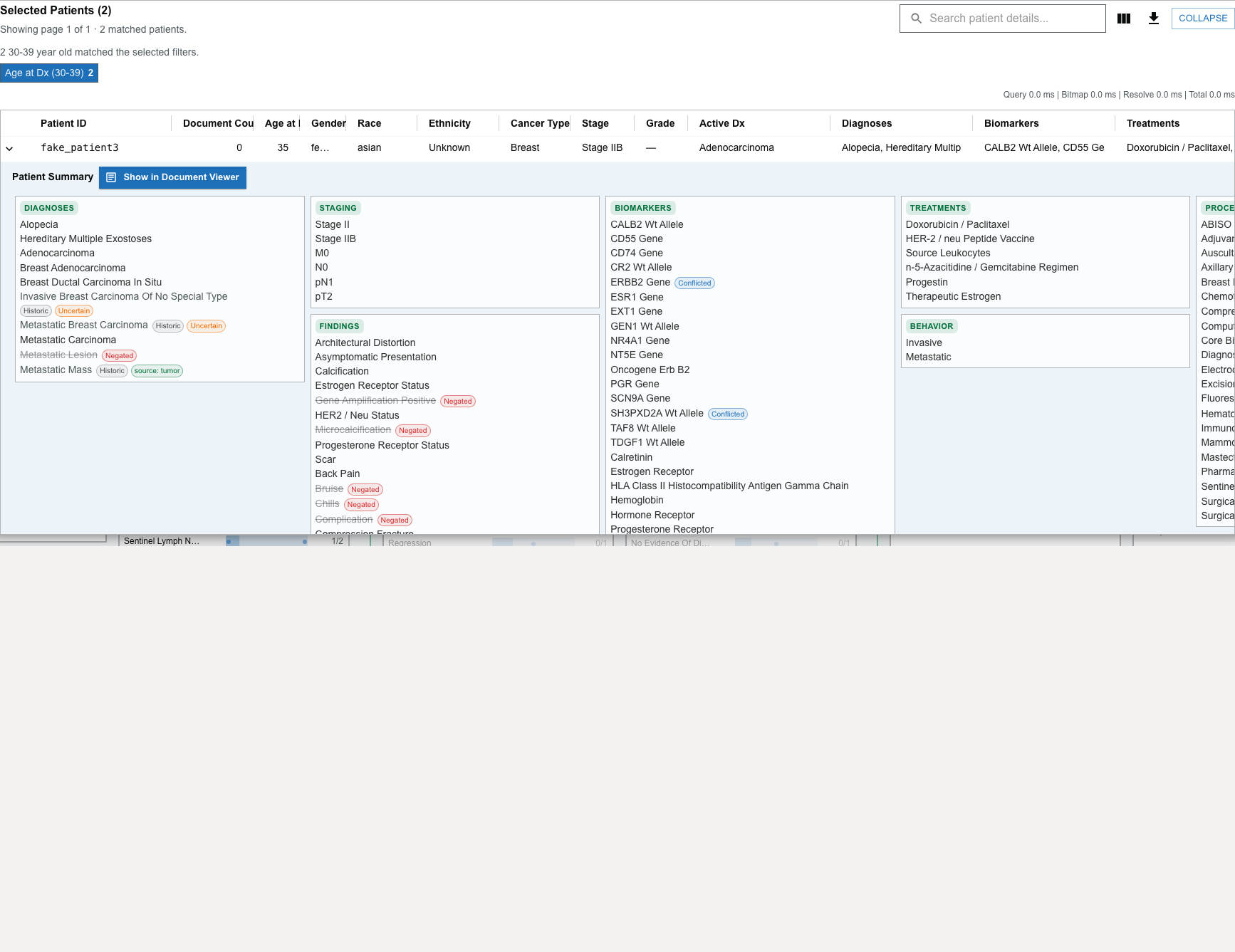
The expanded panel groups:
- diagnoses;
- staging;
- grading;
- biomarkers;
- treatments;
- procedures;
- findings; and
- behavior.
Items carry small indicators when they apply:
| Indicator | Meaning |
|---|---|
| Negated | The record states the finding is absent (for example, "no metastasis"). |
| Historic | The finding refers to the patient's history, not the current episode. |
| Uncertain | The record expresses uncertainty about the finding. |
| Conflicted | Sources disagree about the finding. |
| source | Notes where the value came from (for example, via tumor). |
Open the full patient view
Select Show in Document Viewer in the expanded panel to open that patient as a tab in the drawer, with their cancer and tumor detail, document timeline, Patient Summary, and Document Viewer. See Explore a patient.
You can also right-click a patient's expanded detail for a short menu:

- Open in new tab opens the patient as a tab. If that patient is already open, this focuses the existing tab rather than creating a duplicate.
- Go to tab appears when the patient already has a tab, and switches to it.
Move between pages
Use the pagination controls to load another page. Remember that search, sort, and CSV export apply to the loaded page only.