Display settings
The toolbar's display controls change how the Cohort Explorer looks. None of them change your filters or the cohort.

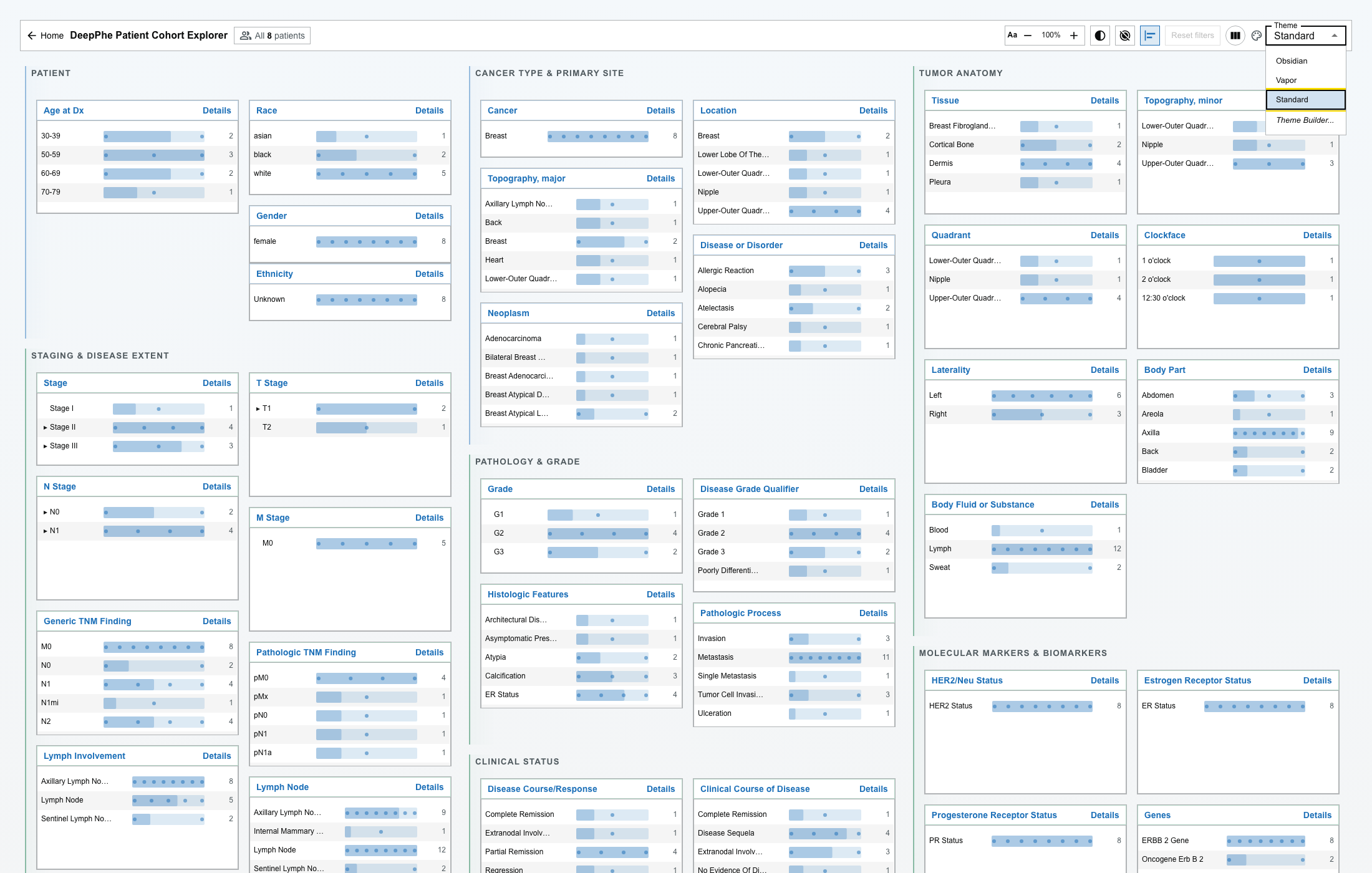
Font size
Use the − and + controls beside Aa to make the interface smaller or larger.
High contrast
Select the High contrast control to strengthen foreground and boundary contrast. Select it again to return to the theme's standard contrast.
Reduced motion
Select Reduced motion to minimize animation and transitions. The application also respects your operating system's reduced-motion preference.
Bars behind dots
Select Bars behind dots to draw a faint proportional bar behind patient dots, giving scale while keeping the dots dominant.

Layout
Use the layout toggle to switch between one card per column and a stacked flow layout. Use whichever reads better on your screen.
Theme
Choose Standard, Obsidian, or Vapor from the Theme menu, or open the Theme Builder to customize colors. See Theme and Theme Builder.
What is remembered
Your browser stores most of these settings between visits: theme, Theme Builder color changes, font size, high contrast, reduced motion, and bars behind dots.
The layout toggle is not stored — it returns to its default when you reload the page.