Theme and Theme Builder
Choose a theme
The Theme menu in the toolbar offers three supplied themes:
- Standard
- Obsidian
- Vapor
Choosing a theme changes only appearance, never your cohort. Your choice is stored by your browser between visits.
Open the Theme Builder
Select Theme Builder… at the bottom of the Theme menu to open the Theme Builder, where you can override individual colors.
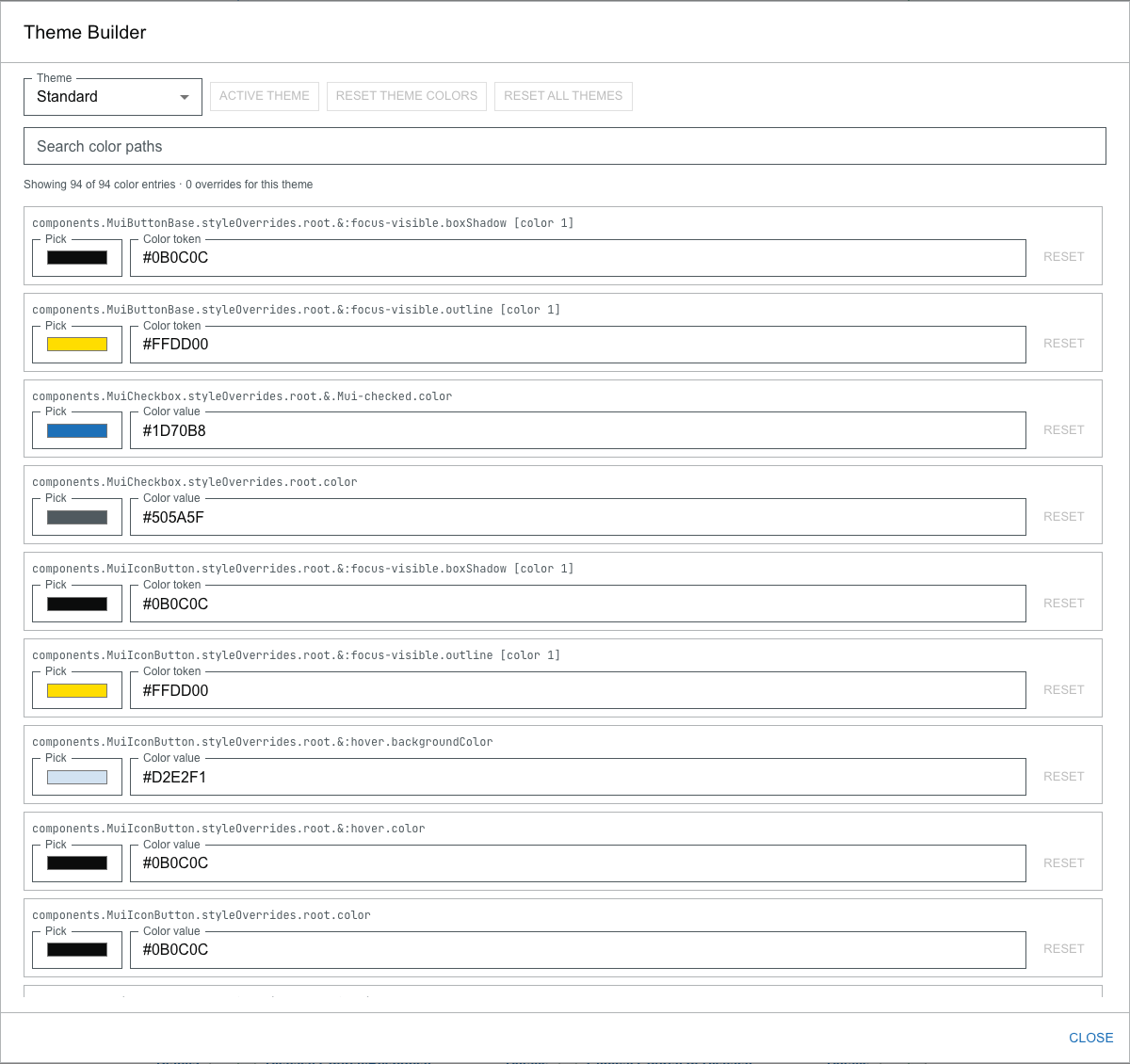
Edit a theme's colors
- In the Theme Builder's Theme menu, choose which base theme you want to edit.
- Find a color to change. Use Search color paths to filter the list by path (for example,
palette.primary.main) or by value (for example, a hex code). A readout shows how many entries match and how many overrides you have for this theme. - Change a color by picking one with the Pick color picker or by typing a color value (or color token) directly.
- Undo one change with its Reset, or start the whole theme over with Reset Theme Colors.
Your color changes are stored by your browser, so an edited theme keeps its look between visits.
Apply an edited theme
Editing a theme does not switch to it. To use the theme you are editing:
- Select Use This Theme. When the theme you are editing is already the one in use, that button reads Active Theme.
Reset
- Reset Theme Colors clears your changes for the theme you are currently editing.
- Reset All Themes clears your color changes for every theme.
Both are available only when there are changes to clear.
Close the Theme Builder with Close; your changes and the active theme are kept.