Cancer and Tumor Detail
The Cancer and Tumor Detail panel presents a patient's cancers and tumors as structured fact badges. Selecting a fact opens the note it came from, so you can verify it against the source.
What it shows
A patient may have more than one cancer, and each cancer may have one or more tumors. For each, the panel shows fact badges grouped by category — the groups that appear depend on the available data, and can include:
- Location;
- Grade;
- Genes;
- TNM stage; and
- other data-dependent groups.
Cancer-level facts describe the cancer overall; tumor-level facts describe a specific tumor.
Use the collapse/expand control in the panel header to fold the panel to a slim strip and back, giving more room to the other cards.
Select a fact
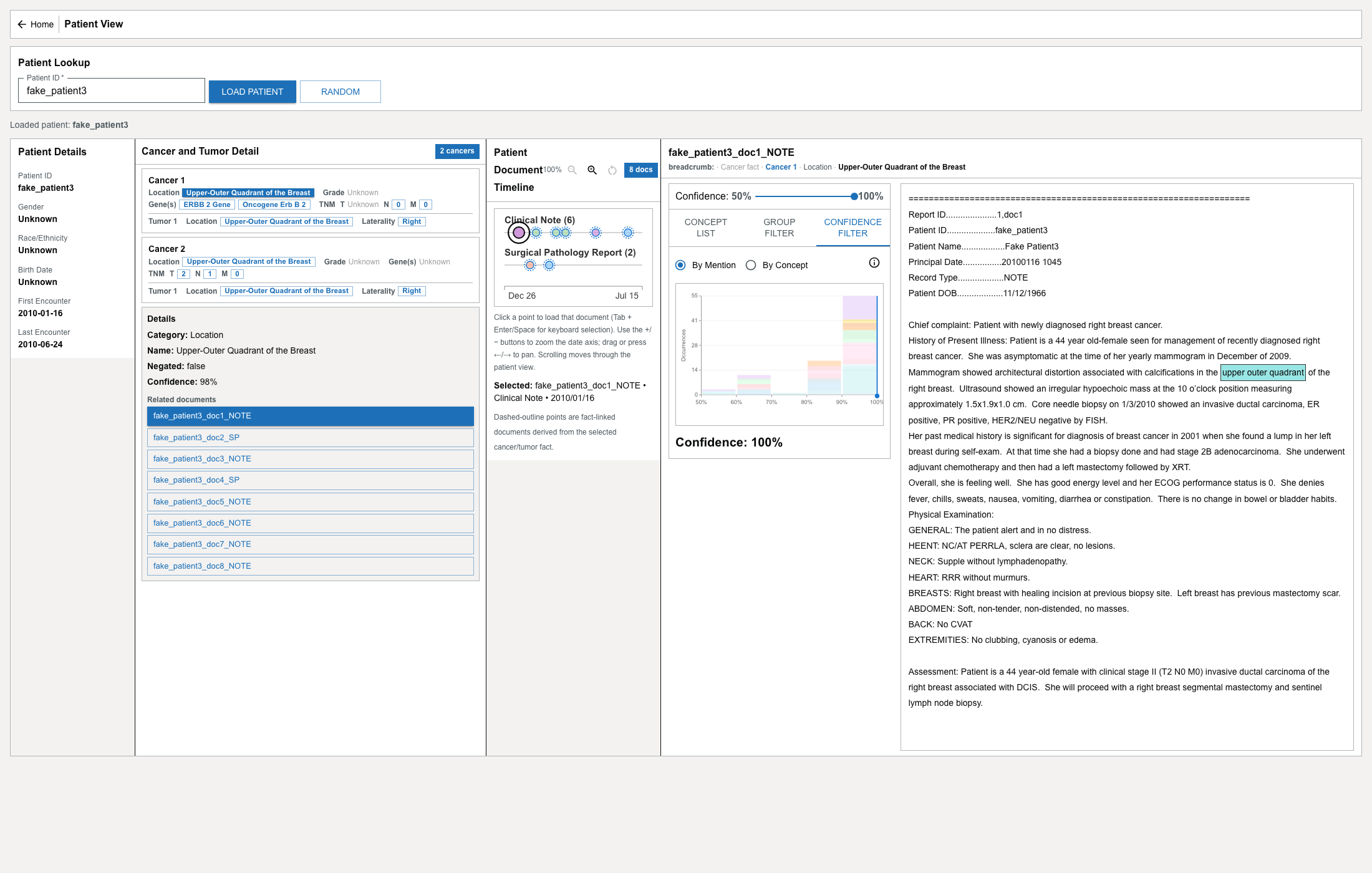
Select a fact badge to focus it. When you do:
- Its detail is shown, which can include the category, name, negated status, and confidence.
- If the fact is linked to a source note, that note opens in the Document Viewer.
- Notes related to the fact are marked on the Patient Document Timeline with dashed outlines, so you can see where the fact is documented.
Select the same fact again to clear it and its highlights.
Not every fact links to a note. When a fact has no resolvable source note, selecting it focuses the fact but does not open a document.
Related notes shown for a fact carry their own context in the Document Viewer's breadcrumb — see Use the Document Viewer.