Use the Document Viewer
The Document Viewer shows the text of a source note and highlights the clinical concepts found in it. It is where you confirm a finding against what the record actually says.
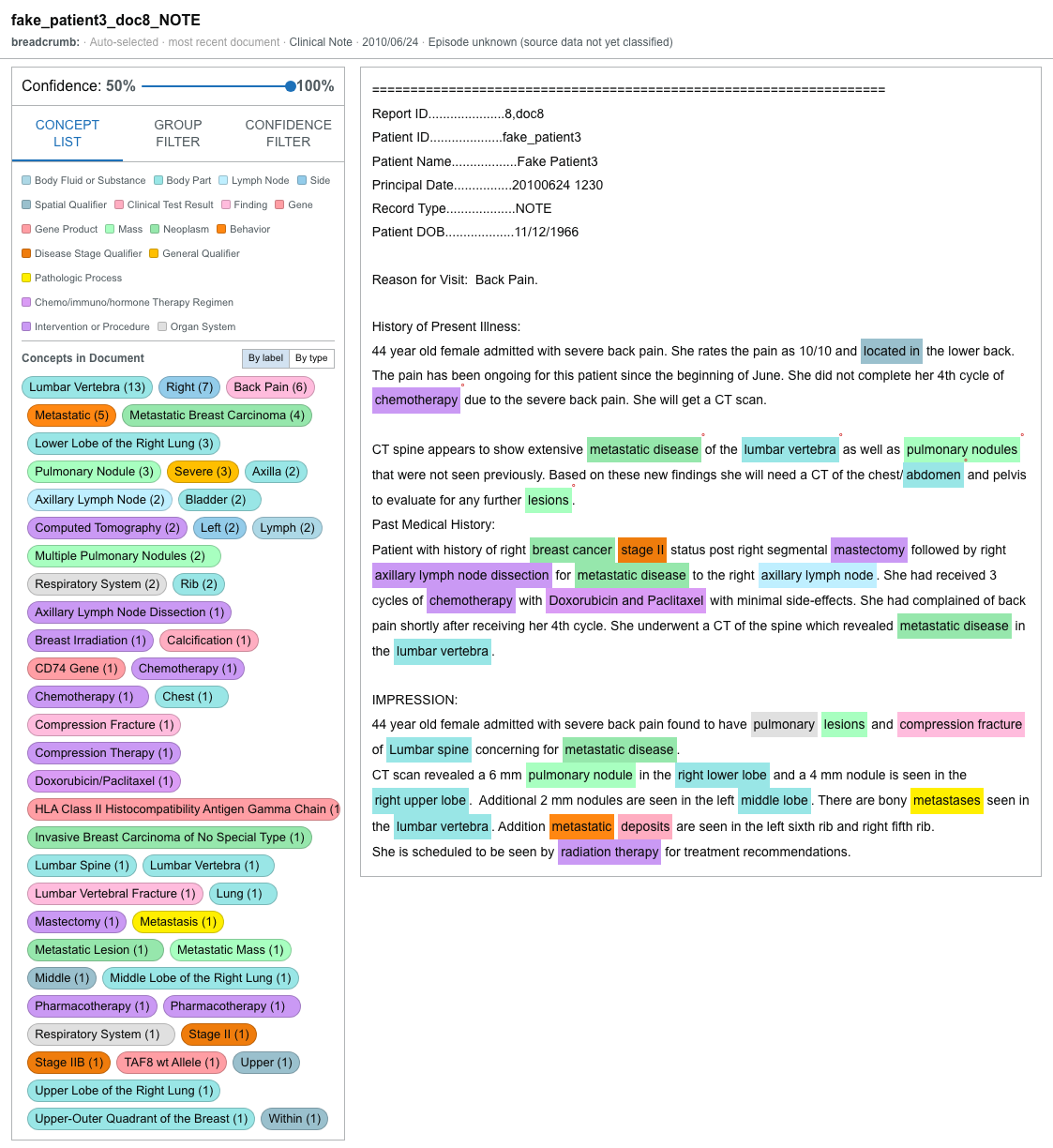
Open a document
A note opens in the viewer when you:
- open a patient (the most recent note opens automatically);
- select a point on the Patient Document Timeline;
- select a cancer or tumor fact;
- select an item in the Patient Summary; or
- select a linked note related to a fact.
In the embedded patient view, a Close document control returns focus to the rest of the view. Use the collapse/expand control in the card header to fold the whole viewer to a slim strip and back. Within the viewer, the concept column has its own collapse control, so you can widen the note text when you don't need the concept list.
Where the document came from
A breadcrumb line under the title tells you how the current note was chosen. It names the source context — for example:
- Auto-selected · most recent document;
- Timeline;
- Cancer fact or Tumor fact;
- Linked document; or
- Patient summary.
Where available, it also shows the document type, date, and episode. For a Patient Summary selection, it can show the confidence and the number of sources the finding was drawn from.
Concept List
The Concept List tab lists the concepts found in the current note and drives the text highlights.
- A legend maps each concept group to a color.
- Each concept shows its mention count in the note.
- Group by label lists concepts alphabetically; Group by type groups them by concept family.
- Select one or more concept chips to focus them; Clear removes the focus. When chips are focused, the other concepts are de-emphasized in the text.
- Click a highlighted text mention to toggle its concept on or off.
- A negated mention (a concept recorded as absent) is marked as such.
- Hover a mention for its details — the concept, group, confidence, and its negated, uncertain, and historic status.
Group Filter
The Group Filter tab turns whole concept groups on or off.
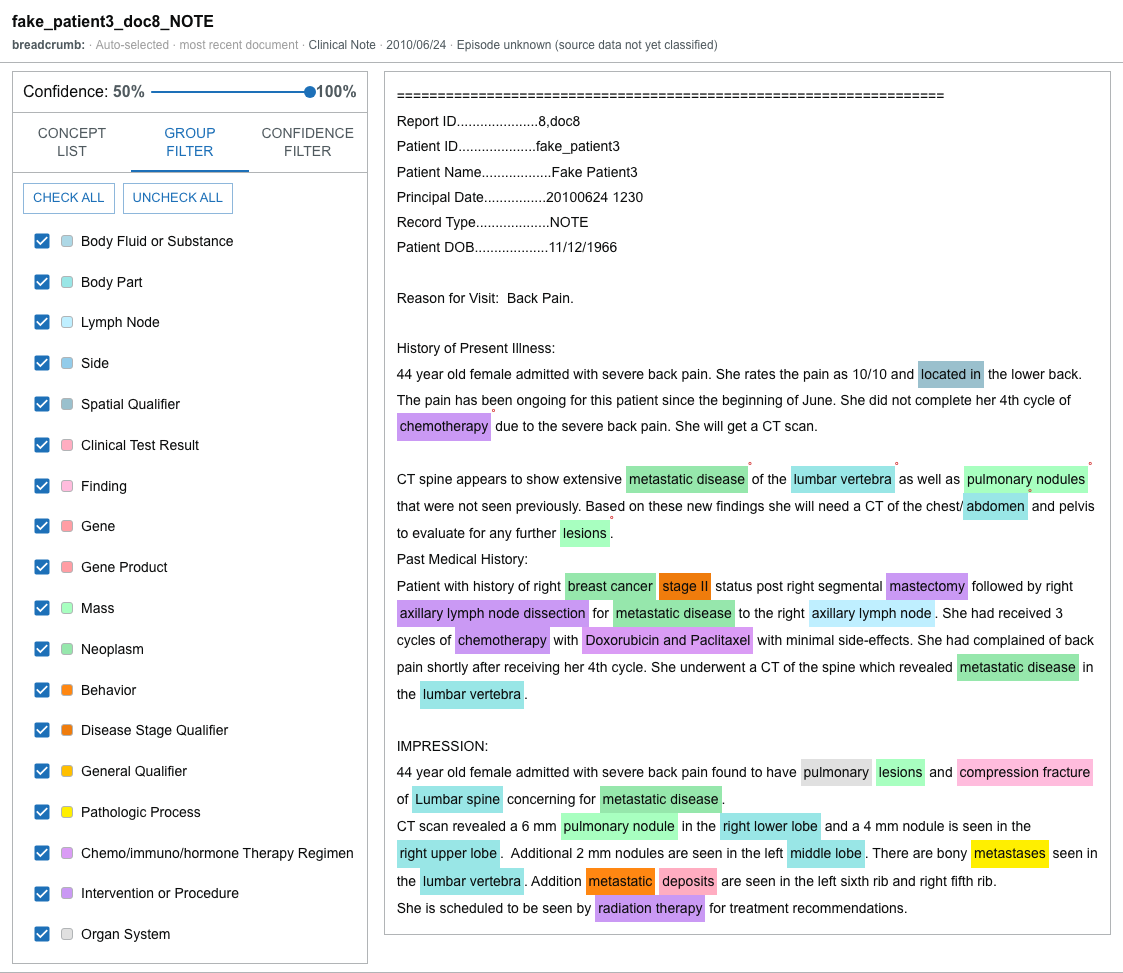
- Enable or disable a group with its checkbox.
- CHECK ALL and UNCHECK ALL switch every group at once.
- Disabling a group removes its highlights from the text.
Confidence Filter
The Confidence Filter tab hides mentions below a confidence threshold.
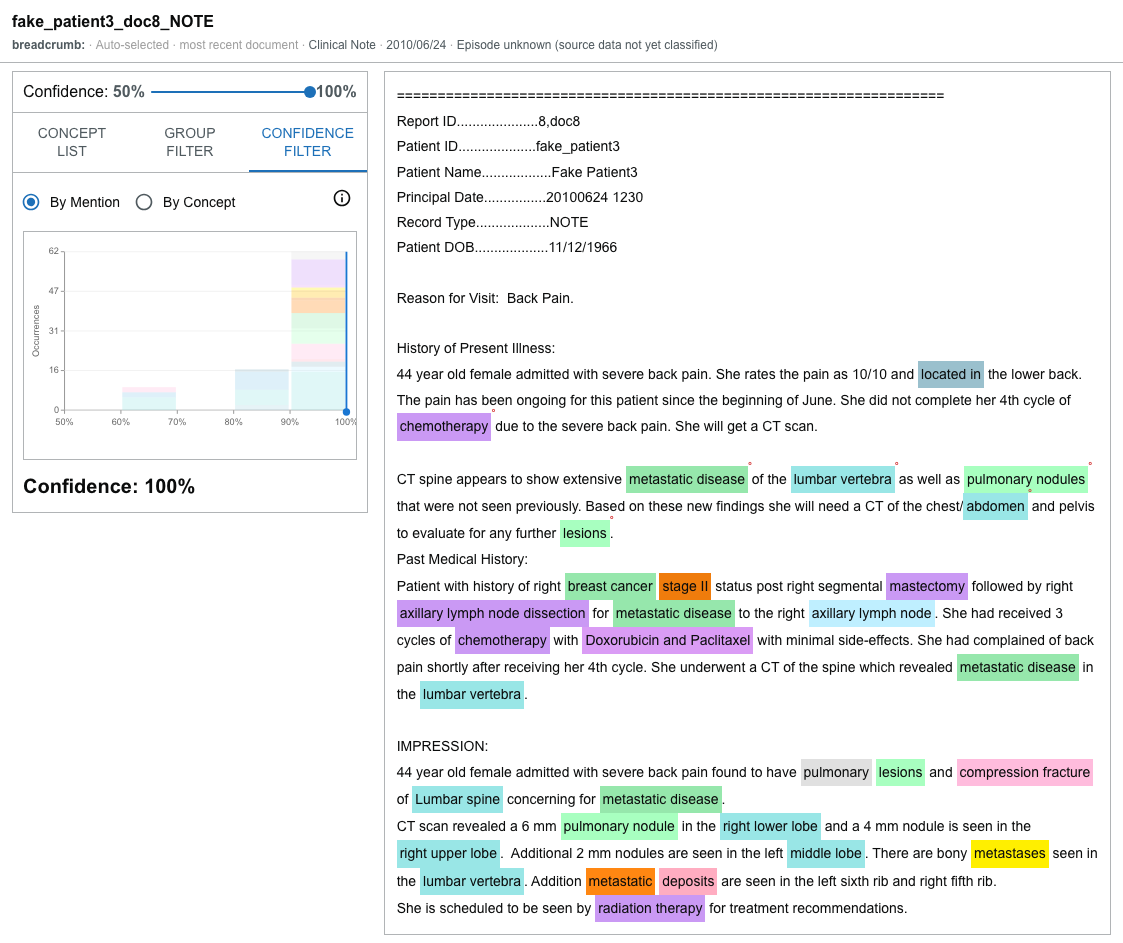
- Drag or click the histogram to set the threshold; the current confidence percentage is shown.
- Mentions below the threshold are filtered out of the text.
- By Mention counts every mention in each confidence bucket.
- By Concept counts each concept once, using its highest-confidence mention.
- A help control explains the difference between the two counting modes.
When a note has no text
Some documents arrive without their full text. When that happens, the viewer shows a notice — "This document payload does not include text. Mention overlays require full text." — because the highlights and concept overlays need the note's text to place them.
Concept highlights are produced by natural-language processing and may be incomplete or wrong. Read the surrounding text and confirm important findings against the source record.