View an individual patient
Opening a patient lets you move from a cohort-level summary to the source notes behind each finding. There are two ways to view a patient, and they differ in what they show.
Two ways to open a patient
Embedded patient view (inside the Selected Patients drawer). This is the richer view. Open it from the Cohort Explorer by:
- clicking a patient dot on a filter card, or
- expanding a row in the Selected Patients table and selecting Show in Document Viewer (or right-clicking the row and choosing Open in new tab).
The patient opens as a tab in the drawer.
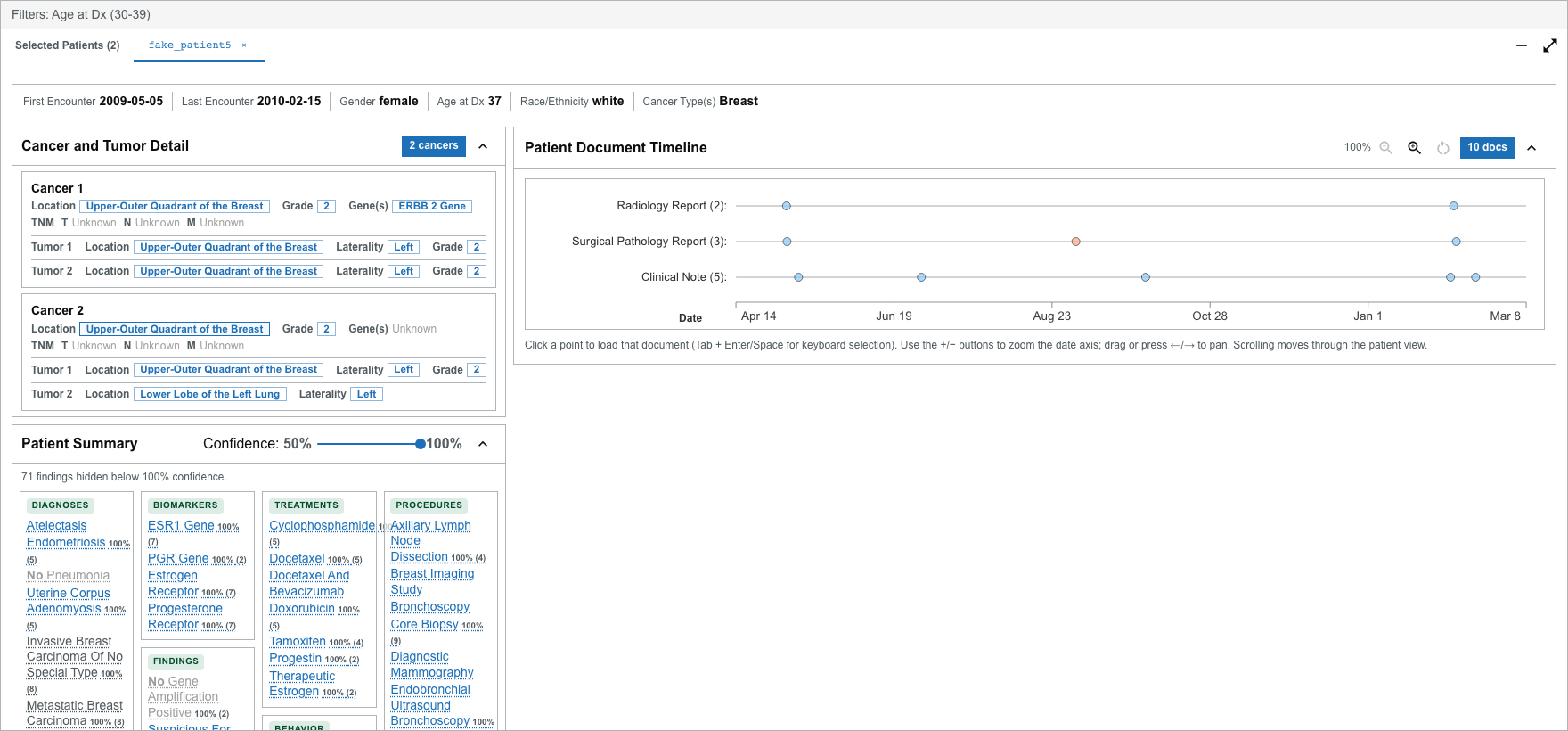
Standalone Patient View (from Home). A separate page where you look a patient up by ID. It shows demographics, cancer and tumor detail, the document timeline, the Event Timeline, and the Document Viewer, but not the structured Patient Summary. See Standalone Patient View.
Choose how the patient view reads
The View control at the top of the patient view switches between three presentations. Your choice is remembered, and it applies to both the embedded and the standalone view.
Improved (the default) is laid out for scanning:
- The cancers are compared in one matrix — attributes down the side, one column per cancer, tumors nested underneath — so differences like a grade of 3 against 1 sit in a single column. Values a tumor shares with its cancer read "Same as cancer" rather than repeating.
- Undocumented values are shown as a dash, never hidden, and each cancer says how many of its fields are documented.
- Panels use one level of containment, and one set of text sizes for panel titles, field labels, values and axis ticks.
- The timelines say which range they are showing, band alternate event lanes, and mark negated events with a dashed line as well as red.
- Zoom in and out read as + and − rather than two similar magnifiers.
Beta is Improved with the cancer comparison turned on its side: the cancers are rows and the attributes are columns, each column only as wide as its values. It takes a header and a row or two of vertical space instead of one row per attribute, and it opens expanded because it is short. Tumor attributes get columns only where a tumor differs from its cancer, under their own "Tumor" heading; columns that differ between cancers are marked "differs"; undocumented or repeated columns fold behind a count. If the panel is too narrow for the columns, it falls back to Improved's vertical matrix rather than scrolling sideways.
Alpha keeps the original reading, faithful to the DeepPhe-Viz-v2-alpha code the Event Timeline was ported from: per-cancer cards, solid marks that carry negation in color alone, and the alpha's wording and controls.
All three show the same data. Only the presentation changes.
What the embedded view contains
Depending on the available data, the embedded view can include:
- Patient overview — demographics such as first and last encounter, gender, age at diagnosis, and race.
- Cancer and Tumor Detail — structured cancer- and tumor-level facts you can select.
- Patient Document Timeline — the patient's notes plotted over time.
- Event Timeline — extracted concepts plotted against the dates they relate to.
- Patient Summary — diagnoses, staging, biomarkers, treatments, and more, grouped into a structured card.
- Document Viewer — the text of the selected note, with concept highlights and filters.
Sections are omitted when their supporting data is unavailable. If a patient has no structured summary, the Patient Summary card does not appear; the same is true of the other sections.
Follow a finding to its source
The most powerful thing this view does is let you trace a finding to the note it came from:
- Select a fact in Cancer and Tumor Detail, or a linked item in the Patient Summary, to open its source note in the Document Viewer.
- Related notes are marked on the timeline so you can see where a finding is documented.
Always confirm extracted findings against the source note before relying on them clinically.